
1. Overview #
This guide walks you through the end‑to‑end process of standardizing on-premises operating system images with XOAP. The goal is to help you build repeatable, compliant, and provider‑agnostic base images that can be used consistently across on-premises deployments on either VMware vSphere, Nutanix or XenServer.
What Are Standardized on-premises OS Images? #
Standardized Cloud OS Images are centrally defined, versioned, and automated operating system images that:
- Follow a common baseline (security, hardening, tooling)
- Are built in a reproducible way
- Can be reused across multiple environments and providers
- Serve as the foundation for higher‑level automation (platform management)
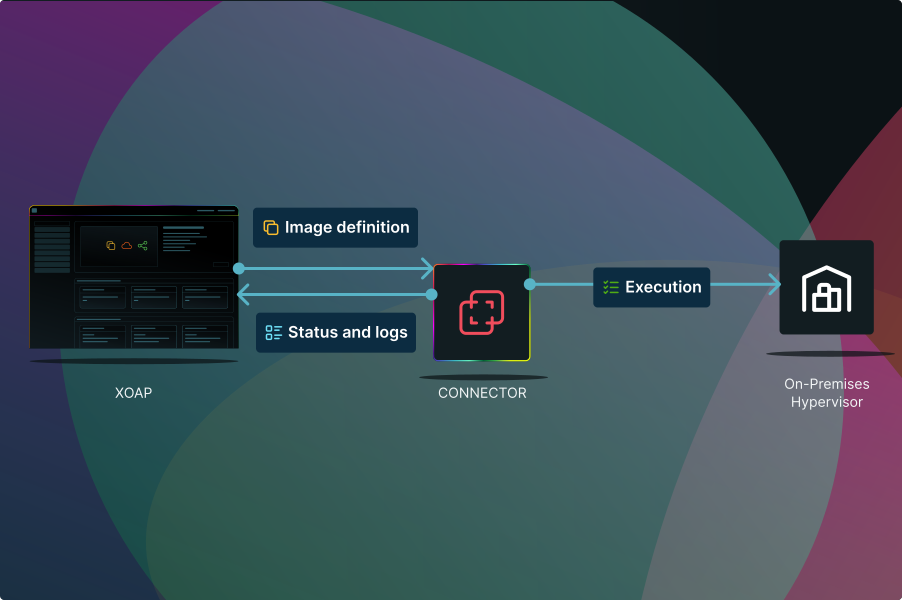
XOAP acts as the control plane that defines what an image should look like and how it is built, while the actual build execution happens inside the target environment.
What is the difference between images being created in the cloud and on-premises #
Creating images in the cloud and on-premises follows the same high-level goal—producing a reusable, standardized machine image—but differs significantly in implementation details.
In on-premises environments, image creation typically relies on full OS installers and requires an explicit autounattend.xml for Windows to automate setup steps such as disk partitioning, locale, users, and initial configuration; additional scripts are needed to configure WinRM, open or adjust the Windows Firewall, and install the appropriate hypervisor tools (for example, VMware Tools or XenServer guest tools) to ensure manageability and performance.
In cloud environments, many of these steps are partially abstracted by the platform through metadata services and pre-configured base images, but customization scripts are still required to align with enterprise standards.
For Linux, both cloud and on-premises image builds require unattended installation mechanisms (for example Kickstart, Preseed, or Cloud-Init) along with post-install scripts to configure SSH access, firewall rules, networking, time synchronization, and to install the relevant hypervisor or cloud-agent packages, ensuring the image integrates cleanly with the target runtime platform.
High‑Level Architecture – How It Works #
At a high level, the process looks like this:
- XOAP defines operating systems, builders, and image definitions
- An on‑premises Connector executes builds locally
- Images are created using native provider tooling
- Results are tracked, versioned, and reused
Key design principles:
- No public inbound access required for XOAP
- Least‑privilege access using native identity concepts
- Separation of control plane and execution plane
Short Overview of the End‑to‑End Flow #
- Prepare prerequisites
- Deploy a Connector
- Add an on-premises Connection
- Add and manage Operating Systems
- Configure Builders
- Create Image Definitions
- Run Image Builds
- Validate the created images
- Troubleshoot if required
- Next steps and extensions
2. Prerequisites #
Before you start, ensure the following prerequisites are met:
General #
- An active XOAP Workspace
- Access to at least one supported on-premises virtualization platform
- Permissions to create images and identities in the target environment (solution specific)
- An Linux or Windows VM, to install the XOAP Connector which acts a s a proxy
- If a proxy is used for internet connection, proxy credentials are needed for the Connector
- Connector has access to the created images with required ports (WinRM 8595, 8596)
- An ISO on the datastore of the desired platform
- The SHA256 hash of the iso
Cloud‑Specific #
vSphere #
Required privileges at vCenter level (minimum set):

    •   Datastore
    •   Allocate space
    •   Browse datastore
    •   Low level file operations
    •   Network
    •   Assign network
    •   Resource
    •   Assign virtual machine to resource pool
    •   Virtual Machine → Inventory
    •   Create new
    •   Register
    •   Remove
    •   Virtual Machine → Configuration
    •   Add new disk
    •   Add or remove device
    •   Change CPU count
    •   Change memory
    •   Settings
    •   Virtual Machine → Interaction
    •   Power on
    •   Power off
    •   Reset
    •   Virtual Machine → Provisioning
    •   Allow disk access
    •   Allow read-only disk access
    •   vApp
    •   Import

Best practices:
    •   Create a dedicated vCenter role for Packer/XOAP
    •   Assign the role at Datacenter or Folder level
    •   Use a service account, not a personal user
Nutanix #
Required roles / permissions:
    •   Ability to create, update, and delete VMs
    •   Image upload and management permissions
    •   Network assignment permissions
    •   Disk attach/detach permissions

Recommended built-in roles:
    •   Infrastructure Admin (broad, easiest)
    •   Or a custom role with:
    •   VM Create / Delete
    •   Image Create / Update
    •   Network View / Attach

Best practices:
    •   Use a service account in Prism Central
    •   Scope permissions to a specific project if possible
XenServer #
Required permissions:
    •   Pool‑admin or equivalent custom role with:
    •   VM create / destroy
    •   Attach / detach disks
    •   Power operations
    •   ISO SR access

Key requirements:
    •   Access to an ISO SR containing the installation media
    •   Permission to create templates or base VMs

Best practices:
    •   Use a dedicated automation user
    •   Avoid using the built‑in root account
2.1 Install XOAP Connector #
For on-premises scenarios XOAP uses a Connector that runs inside the target environment.
Key requirements for the Connector to work with our backend:
- Outbound‑only communication to XOAP (api.xoap.io) via 443
- No inbound firewall rules required
- For Windows systems, please run PowerShell as an Administrator.
- For Linux systems, please execute the commands with sudo to ensure proper permissions.
The Connector can be installed on Windows and Linux devices. The process can be started by clicking on “+ Add Device” button in the Inventory area of your XOAP Workspace.
- Download the correct installer to the device that has network access to your vCenter.
- Create a new API key by selecting + Create API key (or select existing). Under API token type select XOAP Connector
- On the device, navigate to the location where the installer was downloaded and run the command with the added flag –imageManagement
Example: .\XOAP.Connector.Installer.exe –install –apiKey PLEASE_SELECT_API_KEY –workspace YOUR_WORKSPACE_ID –imageManagement
2.2 Verify Registration #
Please note that following these steps will temporarily navigate you away from the Get Started module, but you can return at any time to pick up where you left off
After installing the XOAP Connector, you need to verify that it is successfully communicating with the XOAP platform.
Steps to verify:
- In the left-hand navigation menu, expand the Inventory module and click on Devices.
- Locate the machine where you installed the Connector by looking for its hostname in the Device Name column.
- Check the Is Online column next to your device. The status should display as Connected, confirming that the Connector is successfully installed and communicating with the platform. (Note: If it shows “Disconnected”, ensure the machine is powered on, has internet access, and the XOAP service is running).
3. Add a Connection #
XOAP Connections store the credentials and endpoints XOAP needs to integrate with external systems (for example, cloud providers and on-prem virtualization platforms). These connections are then used by other XOAP features.
Add connection Cloud-specific #
Nutanix #
Fields you provide:

  •   Connection name – Friendly name used in XOAP to reference this connection.
  •   Connector - The device where the XOAP Connector is installed, acting as a bridge between the XOAP platform        and your environment.
  •   Nutanix Username – The account XOAP uses to authenticate to Nutanix (typically Prism).
  •   Nutanix Password - The password for the Nutanix account.
  •   Endpoint – The Prism endpoint (hostname/IP + port if applicable) that XOAP connects to.
  •   Cluster name - The Nutanix cluster identifier/name within Prism where operations will be performed.
  •   Insecure (toggle) – Allows connecting without strict TLS validation (use only when required in lab/PoC scenarios).
  •   Description (optional)  - Free-text note to document purpose/owner of the connection.
  •   Tags (optional) - Labels to help you find, filter, and govern connections (max 5 per object).
vCenter #
Fields you provide:

  •   Connection name – Friendly name used in XOAP to reference this connection.
  •   Connector - The device where the XOAP Connector is installed, acting as a bridge between the XOAP platform and your environment.
  •   vCenter Server – The vCenter hostname or IP address XOAP will connect to.
  •   Username - The vCenter user (or SSO identity) used for authentication.
  •   Password – The password for the specified vCenter user.
  •   Datacenter - The vSphere Datacenter inventory object that contains the clusters/hosts/datastores you want to target.
  •   Cluster – The vSphere cluster under the selected datacenter that groups hosts and provides shared resource management (DRS/HA if enabled).
  •   Host – A specific ESXi host to target (often used when selecting an exact host instead of scheduling via cluster/rules).
  •   Resource pool – The resource pool within the cluster/host that defines CPU/RAM shares/limits/reservations for deployed VMs.
  •   Datastore - The storage location where VM files (VMDKs/config) will be placed.
  •   Folder - The vCenter VM folder used to organize where the VM object appears in the inventory.
  •   Insecure (toggle) - Allows connecting without strict TLS validation (use only when required in lab/PoC scenarios).
  •   Description (optional)  - Free-text note to document purpose/owner of the connection.
  •   Tags (optional) - Labels to help you find, filter, and govern connections (max 5 per object).
Important behavior:
- Case-sensitive fields: vCenter inventory object names (Datacenter/Cluster/Host/Resource pool/Datastore/Folder) are case sensitive. Enter them exactly as defined in vCenter.
XenServer #
We're getting this ready for you4. Add Operating Systems #
In XOAP, the Operating System represents the base image that will be used as the foundation for your custom virtual machine image.
On-premises operating systems are generic for all types of on-premises hypervisors.
Examples:
- Windows 11 Enterprise
- Windows Server 2025
- Ubuntu LTS
- RHEL
You can add a New Operating System by clicking “+ Add Base Image” in right upper corner.
When adding an On-Premises Operating System in XOAP you define:
- Name – Name of your Operating System. You can define the name by your own naming convention
- ISO File Name – provide the name of your ISO file which will be used as base Operating System for your Image Definition Example: SERVER_EVAL_x64FRE_en-us.iso
- ISO Path – full location to the your ISO file Example: [datastore01] ISO/
- ISO Checksum – checksum of your ISO as additional security feature
OS specific #
For Windows #
  •   Autounattend – file which is used to modify windows settings during Setup. This file must be uploaded to XOAP resource area. You can select one from pre-uploaded autoanattend.xml files if they fit you
  •   Setup Files - defines which extra files XOAP mounts into the virtual machine during operating system installation.
For Linux #
We're getting this ready for youImportant:
- Use Get-FileHash in PowerShell to generate the checksum for the ISO file: Get-FileHash -Path “\fileserver\isos\Windows11_24H2.iso” -Algorithm SHA256. Copy the returned Hash value into the ISO Checksum field in XOAP.
- Setup files files are typically used by the unattend.xml to install drivers, tools, or to run custom PowerShell scripts during or immediately after the first boot. For this use case, we provide some template files like:
- windows-init.ps1 – Enables Windows Remote Management on Windows builds. Needed to sucesfully finish creation of template VM on your vCenter
5. Add Builder Configuration #
The Builder Configuration defines where and how an image is created, based on the selected platform or cloud provider (for example, AWS, Azure, Google Cloud, or VMware). During builder configuration, you also choose the Connection used for your cloud or on-premises environment.
A Builder configuration typically includes:
- Target platform (Nutanix, vSphere or XenServer.)
- CPU and RAM configuration
- Networking and storage configuration
- Temporary build resources
Builders abstract provider differences while keeping builds transparent and auditable.
To create new builder click on “+ Builder Configuration” and select wanted hypervisor .
Add a builder configuration Cloud specific #
Nutanix #
General Details:

  •   Name – Friendly name used in XOAP to reference this builder configuration.
  •   Select Type - The target platform for the builder (set to Nutanix in this context).
  •   OS Type – The operating system type of the virtual machine being built.
  •   Connection - The pre-configured Nutanix connection XOAP uses to authenticate and interact with your Nutanix cluster.
  •   Subnet name – The name of the Nutanix network/subnet the virtual machine will connect to during the build process.
  •   Description (optional) - Free-text note to document the purpose, owner, or specifics of this builder configuration.
  •   Tags (optional) - Labels to help you find, filter, and govern builder configurations.
Environment Configuration:
• CPU – The number of virtual CPUs allocated to the virtual machine during the build.
• Memory GB - The amount of memory allocated to the virtual machine, specified in gigabytes.
• CD-files – A list of files to be uploaded and attached to the virtual machine as a CD-ROM. You can separate multiple files by pressing enter or using a comma.
• Boot type - The firmware boot configuration used for the virtual machine (e.g., legacy or uefi).
• Boot priority – The boot device order/priority (e.g., setting it to boot from CD-ROM first, then disk).
• Disk size (GB) - The total capacity of the primary virtual hard disk to be created, specified in gigabytes.
• GPU - Optional GPU configuration to attach a virtual graphics processing unit (vGPU) to the VM during the build. Output Configuration / All OS
• Image export (toggle) – When enabled, exports the resulting built virtual machine into a finalized Nutanix image.
• Disable sysprep at the end (toggle) - When enabled, skips the standard Sysprep (System Preparation) process at the end of a Windows build. Use this only if you are handling generalization via custom scripts.
• Shutdown command – The specific command used to gracefully shut down the guest operating system once provisioning is complete.
• Shutdown timeout - The maximum amount of time to wait for the virtual machine to shut down gracefully before forcing a power off or failing the build. vSphere #
Fields you provide:

General Details

  •   Name – Friendly name used in XOAP to reference this builder configuration.
  •   Select Type - The target platform for the builder (set to vSphere in this context).
  •   Connection – The pre-configured vSphere connection XOAP uses to authenticate and interact with your vCenter/ESXi environment.
  •   Disk size (GB) - The total capacity of the primary virtual hard disk to be created, specified in gigabytes.
  •   HW Version – The VMware hardware version for the virtual machine (e.g., 19, 20).
  •   Guest OS Type - The VMware internal ID for the guest operating system (e.g., windows9Server64Guest, ubuntu64Guest). This ensures vSphere applies the correct default optimizations for the OS.
  •   Network – The vSphere network or port group the virtual machine will connect to during the build process.
  •   Network card - The type of virtual network adapter to attach to the VM (e.g., vmxnet3, e1000).
  •   Export to Content library destination (toggle) – When enabled, exports the resulting built artifact directly into a specified vSphere Content Library.
  •   Convert to template (toggle) - TWhen enabled, automatically converts the built virtual machine into a VMware template once the provisioning is complete.
  •   Tags (optional) – Labels to help you find, filter, and govern builder configurations.
  •   Description (optional) - Free-text note to document the purpose, owner, or specifics of this builder configuration.
  •   Firmware - The firmware type used to boot the virtual machine (e.g., bios or efi).
  •   CPUs – The number of virtual CPU cores allocated to the virtual machine during the build.
  •   RAM (GB) - The amount of memory allocated to the virtual machine, specified in gigabytes.
  •   CD-ROM type – The virtual controller type used for the CD-ROM drive (e.g., sata, ide).
  •   Disk controller type - The type of storage controller to use for the virtual disk (e.g., pvscsi, lsilogic, sata).
  •   Disk thin provisioned (toggle) - When enabled, the virtual disk will be thin-provisioned, meaning it only consumes physical storage space as data is actually written to it.
  •   Storage – The target vSphere datastore or datastore cluster where the virtual machine files and disks will be stored.
Flag Configuration:
• VBS enabled (toggle) – Enables Virtualization-Based Security (VBS) on the virtual machine. Note: This typically requires EFI firmware, Secure Boot, and specific hardware versions.
• VVTD enabled (toggle) - Enables VMware Virtual I/O Technology (Intel VT-d) on the virtual machine, allowing direct access to hardware devices. Content Library Configuration - (These fields appear when "Export to Content library destination" is enabled)
• Library – The name of the target vSphere Content Library where the finalized image or template will be stored.
• Cluster - The ESXi cluster associated with the Content Library export or where the temporary staging occurs.
• Folder – The vCenter virtual machine folder where the temporary VM is placed during the build and export process.
• Datastore - The specific vSphere datastore used for staging the export files or backing the Content Library item.
• Destroy (toggle) - When enabled, automatically deletes the original built virtual machine from your vCenter inventory after it has been successfully exported to the Content Library.
• OVF (toggle) – When enabled, exports the artifact as an OVF (Open Virtualization Format) package. If disabled, it typically exports as an OVA (single-file) format.
• Skip import (toggle) - When enabled, the build process runs but skips the final step of actually importing the artifact into the Content Library. This is primarily used for testing or debugging the build process without uploading the final image. XenServer #
We're getting this ready for you6. Add Image Definition #
An Image Definition ties everything together.
It references:
- Platform
- Builder Configuration
- Operating System
- Provisioning steps (scripts, actions, hardening), we call it Provisioner Role.
You will have at least 2 Provisoner Roles in your workspace. One ready for Windows devices and 2nd for linux.
To create and run New Image Definition click on button in right upper corner “+ New Image Definition” and fill next form:
- Assign a name and description to the image definition
- [optional] Select tags for categorization or filtering
- Choose the builder provider and specific builder configuration
- [optional] Pick a base operating system image
- Link the appropriate provisioner role (which includes all scripts, tasks, and configurations)
- Define a XOAP Connector device for on-premises Image definitions
- [optional] Schedule Image Definition Run
You can save Image definition and run it later from Image Definition area under Image Management module, or click Save & Run to run it during creation.
Each run results in a new, versioned image artifact.
- Trigger a run manually or via schedule
- XOAP hands off execution to the Connector
- Build progress and logs are tracked centrally
Each run results in a new, versioned image artifact.
6.1 Verify the Created Image #
After a successful build:
- Validate the image
- Confirm naming and version metadata
XOAP keeps a record of:
- Logs
- Resulting image IDs
Validate Image Definition #
Nutanix #
To confirm your image was successfully created and finalized in your Nutanix environment (especially if you enabled the Image export toggle), you will need to check the Prism web console:

Checking the Nutanix Image Service:

  •   Log in to your Nutanix Prism console (Prism Element or Prism Central, depending on your target connection).
  •  Navigate to the Images dashboard:
     In Prism Central: Go to the hamburger menu > Compute & Storage > Images.
     In Prism Element: Click the gear icon (Settings) and select Image Configuration, or use the main drop-down menu to go to Virtual Infrastructure > Images.
  •  Search the list for the name you specified in your XOAP image definition.
  •  Verify that the image state is active/active and that its type matches what you expect (e.g., Disk Image), making it ready for deploying new virtual machines.
vSphere #
After a successful build, you can verify the creation of your image or template directly within your VMware vCenter environment. The location depends on the specific settings you chose in the vSphere Builder Configuration:

If exported to a Content Library:

  •  Log in to your vSphere Client.
  •  Navigate to the main menu and select Content Libraries.
  •  Click on the specific Library you selected in your XOAP configuration.
  •  Browse the OVF & OVA Templates tab to find your newly exported image.

If converted to a standard vSphere Template:

  •  Log in to your vSphere Client.
  •  Navigate to the VMs and Templates inventory view.
  •  Expand your vCenter tree to locate the specific Datacenter and Folder where the build took place.
  •  Look for the name you assigned to the image. It should have the standard vSphere template icon (a virtual machine icon with a small paper symbol).
XenServer #
We're getting this ready for youSummary #
By following this flow, you establish a clean, auditable, and scalable image pipeline:
- One control plane (XOAP)
- Multiple execution environments
- Consistent OS baselines
- Cloud and on‑prem parity
This forms the foundation for enterprise‑grade automation and compliance‑driven infrastructure.
Troubleshooting #
If a build fails:
- Review build logs in XOAP
- Check Connector health and permissions
- Validate cloud quotas and limits
- Confirm network reachability inside the target environment
Most issues are related to:
- Missing permissions
- Network misconfiguration or port restrictions
- Provider‑side quota limits
Next steps #
Once your first standardized image is working, typical next steps include:
Add Your Own Scripts, Applications and Configurations #
- Extend provisioners with custom scripts
- Integrate security baselines
- Install enterprise tooling
Check our GitHub repo here.
Reuse existing Roles in the cloud #
- Apply the same provisioning roles to cloud images
- Achieve consistency across hybrid environments
Build Higher‑Level Automation #
- Application packaging
- Stacks and roles
- Continuous image updates