Table of contents
PSADT packages are only as consistent as the person who built them. One engineer structures the install phase one way, another handles process closing differently, a third skips the repair phase entirely. Each package works until it doesn’t and debugging it means deciphering someone else’s conventions first.
The lack of a standard compounds across every package in your library.
XOAP Package Wizard for PSADT v4 fixes that at the source. Every package built with it follows the same structure, uses the same phase layout and produces the same output format, regardless of who’s doing the packaging. Installer in, deployment-ready package out in under 10 minutes, without coding.
This tutorial walks through the full process, from dropping in your installer to exporting a zip you can hand straight to Intune, SCCM or any PowerShell-capable tool.
🎞️ The tutorial is also available in video format. Watch it here
What is XOAP Package Wizard?
The Package Wizard is a free, standalone tool from XOAP that generates production-ready PowerShell App Deployment Toolkit (PSADT) v4 packages through a guided, no-code interface.
It handles the Invoke-AppDeployToolkit.ps1 structure, the $adtSession block, install and uninstall phases, and every parameter declaration, without you typing a single line of PowerShell.
The exported package is a standard ZIP file: PSADT toolkit, your installer files and the generated script, all in one folder. It works with any endpoint management tool like Intune, SCCM or anything else you deploy with, with no proprietary wrappers.
You can download the free Wizard edition here without creating an account or providing credit card information.
How to create a package
XOAP Package Wizard handles packaging through seven guided steps.
To begin, open the Wizard and click Start New Package. You’ll land on the package setup screen with a drag-and-drop zone waiting for your installer.
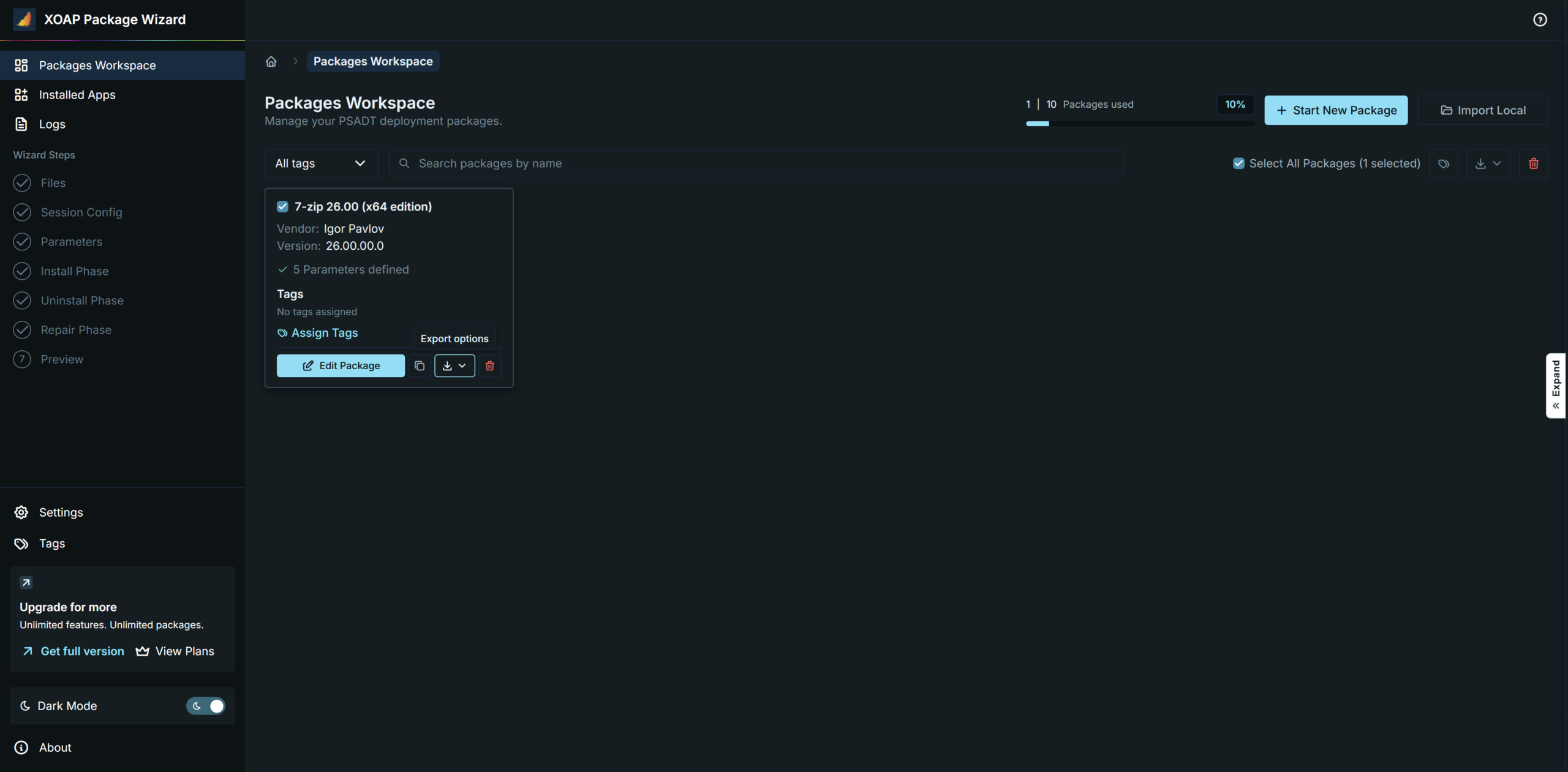
For this walkthrough, we’ll package 7-Zip.
Step 1: Drop in your installer
Add or drag your installer file onto the drop zone. The Wizard accepts MSI files, EXE installers and any other format your deployment requires.
For MSI files, the Wizard reads the embedded metadata (product name, version, architecture and more) and offers to pre-fill the package details automatically. That’s around 12 fields you won’t have to type in manually.
Step 2: Configuration
The Configuration screen maps directly to the $adtSession block of your generated Invoke-AppDeployToolkit.ps1. Most fields are already populated from the MSI metadata.
A few things worth setting here:
• RequireAdmin — set this to true for anything that installs to Program Files. It requires elevation and prevents silent failures on standard user accounts.
• ProcessesToClose — list any processes that should be closed before installation begins. For 7-Zip, that’s 7zFM (the 7-Zip File Manager). If a user has it open when the package runs, PSADT will close it cleanly before proceeding.
Everything you configure here ends up in the session block of the generated script, exactly where PSADT expects it.
Step 3: Parameters
The default PSADT v4 parameters like DeploymentType, DeployMode and the rest are always present and don’t need to be added manually. This step is for custom parameters specific to your package.
If you need an -Environment parameter with a fixed set of allowed values (e.g. Test, Staging, Production), you define it here.
For a straightforward application deployment like 7-Zip, you can skip ahead.
Step 4: Build your install phase
This is the core of the Wizard. The Install screen gives you three editors: pre-install, install and post-install. These cover everything that runs before, during and after the main installation.
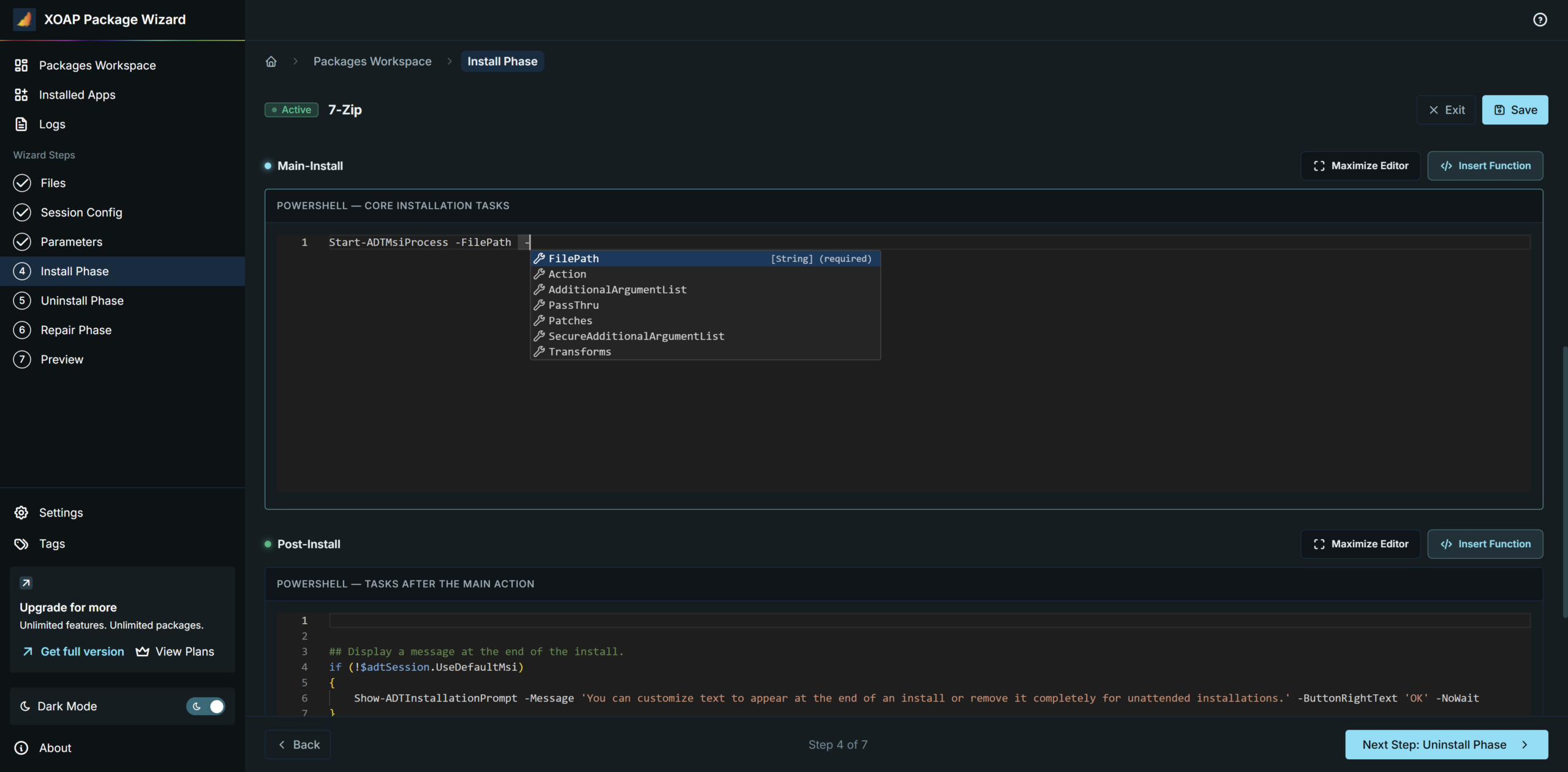
Autocomplete for every PSADT v4 cmdlet
Start typing a PSADT cmdlet name and the editor provides autocomplete across the full v4 toolkit. Accept a suggestion and it drops in a code snippet with placeholder values for each required parameter. Press space and a dash to trigger inline parameter hints (types, descriptions and valid values), all without leaving the editor.
Function Builder
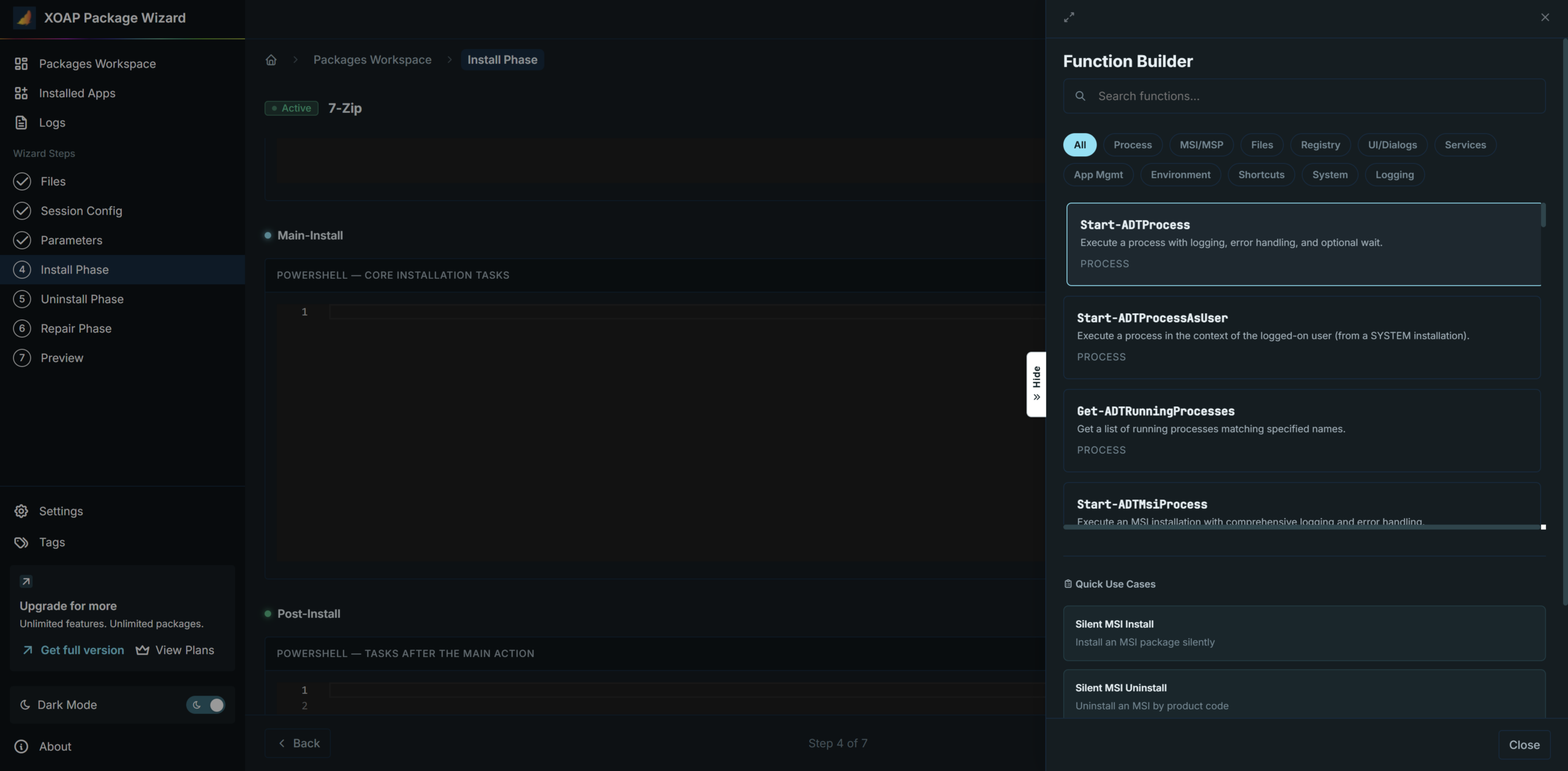
If you’d rather not memorize cmdlet names at all, open the Function Builder. It’s a visual catalog of every PSADT v4 function, organised by category: Process, MSI, Files, Registry, UI and more. Pick a function, fill in the form, see the generated code update in real time, then click Insert to drop it directly into your script.
In the free version of the Wizard, the Process and MSI categories are fully enabled. Other categories are visible with lock indicators so you can see what’s available in the full version.
For the 7-Zip install itself, the MSI category handles Execute-MSI cleanly. Select it in the Function Builder, set the action to Install and point it at your installer file.
Steps 5 & 6: Uninstall and repair phases
The Uninstall phase is handled the same way as the previous Install phase. Same three editors (pre-uninstall, uninstall, post-uninstall), same autocomplete, same Function Builder.
Step 6 is the Repair phase. Many packages leave this empty, which is fine, as PSADT simply runs an empty function. If your application supports repair operations, you can define them here using the same tools.
Step 7: Preview and test run
Click Next to see the fully generated Invoke-AppDeployToolkit.ps1. The exact script that will be included in your export.
From here you can run a live test before exporting:
1. Select a deployment type and mode
2. Enable Run as Admin
3. Click Test Run
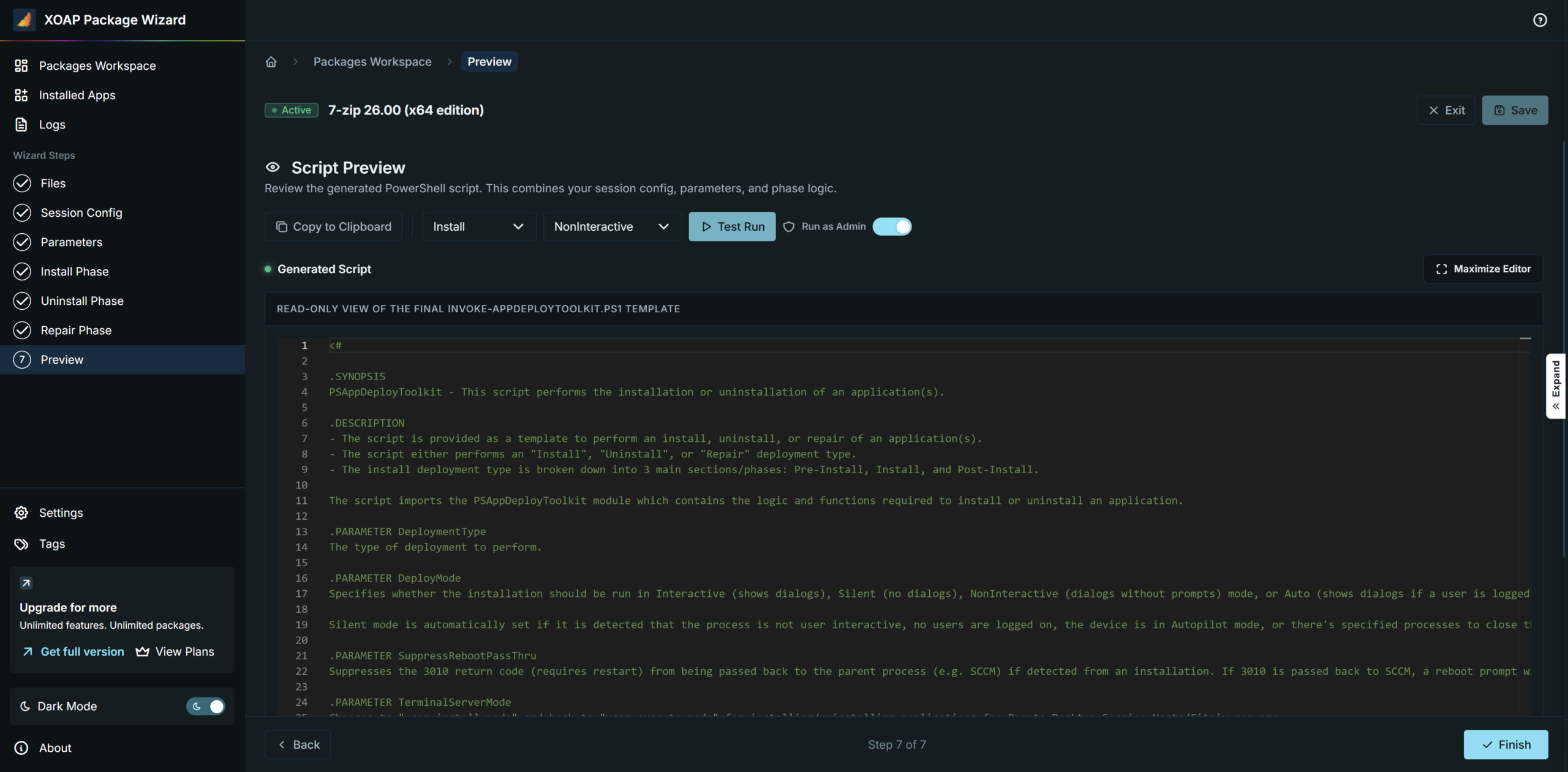
The script executes on the local machine. Output streams into the terminal below the editor in real time. There’s a 120-second timeout for hung processes. The Wizard will do exactly what it says: test this on a dev box, not a production machine.
Step 8: Export
Back on the dashboard, click Export on the package card. The Wizard produces a standard ZIP archive containing:
• The generated Invoke-AppDeployToolkit.ps1
• The full PSADT v4 toolkit
• Your installer file(s)
This is what you hand to Intune, SCCM or whichever tool you use.
The ZIP contains nothing proprietary. If you switch deployment platforms tomorrow, the package still works.
Two features that save hours
Installed Apps
Before writing an uninstall phase from scratch, open Installed Apps. The Wizard scans the machine’s registry and surfaces every installed application with its uninstall command. Select the app and the Wizard generates the correct removal command. Paste it straight into your uninstall phase.
Import Local
Already have a library of existing PSADT packages? Import Local pulls any v3 or v4 package into your workspace. For v3 packages, it automatically translates the syntax to v4. Function names, parameter structures and session variables are updated to match the new framework. The result lands in your Packages Workspace, ready to edit or export.
Get the free Wizard
The XOAP Package Wizard for PSADT v4 is free to download. Fill in the form below and you’ll receive the download link via email. You can also check the full feature list and available plans here.
Enjoy clean, standard PSADT v4 packages that work wherever you deploy.
Request
download link
Use a business email address to make sure you receive the XOAP Package Wizard in your inbox.