
Inhaltsübersicht
Die Verwaltung großer Windows-Bereitstellungen ist eine der anspruchsvollsten Aufgaben im IT-Betrieb. Zwischen uneinheitlichen Hardwarekonfigurationen, Compliance-Anforderungen und der ständigen Notwendigkeit, Geräte nach der Installation registriert und verwaltet zu halten, ist der Prozess selten so unkompliziert, wie er sein sollte.
Dieser Artikel beschreibt, wie XOAP und OSDCloud zusammenarbeiten, um diese Herausforderungen zu bewältigen, und behandelt die drei unterstützten Bereitstellungsansätze der Integration, die sich jeweils in der Boot-Image-Art und der Windows-Image-Quelle unterscheiden, sodass Sie die Option auswählen können, die zu Ihrer Infrastruktur passt.
Herausforderungen bei der Bereitstellung des Windows-Betriebssystems
Die Bereitstellung von Windows in großem Maßstab birgt konstant die gleichen Probleme:
- KonfigurationSchwierigkeit: Unterschiedliche Gerätegruppen erfordern unterschiedliche Treiberpakete, Betriebssystemeditionen, Sprachpakete und Aktivierungstypen. Die manuelle Verwaltung dieser Variationen führt zu Fehlern und ist bei großen Flotten nicht skalierbar.
- Hardware-Konsistenz: Geräte von verschiedenen Herstellern verhalten sich während der Bereitstellung unterschiedlich. Ohne einen kontrollierten, wiederholbaren Prozess entsteht eine Flotte, die in einem inkonsistenten Zustand in ihren Lebenszyklus startet.
- Sicherheit und Compliance von Anfang an: Die Betriebssystembereitstellung ist der Zeitpunkt, an dem Sicherheitsrichtlinien durchgesetzt werden sollten. Organisationen, die sich auf die Nachbereitung nach der Bereitstellung verlassen, gehen unnötige Risiken und Prüfungsrisiken ein.
- Kontinuität des Managements nach der Bereitstellung. Die Installation eines Betriebssystems ist nur der erste Schritt. Das Registrieren von Geräten für die laufende Verwaltung, das Anwenden von Konfigurationen und das Bereitstellen von Standardanwendungen muss noch erfolgen – idealerweise ohne manuellen Eingriff.
Traditionelle Lösungen wie MDT, SCCM und WDS lösen diese Probleme, erfordern aber erhebliche Investitionen in die Infrastruktur und laufende Wartung. XOAP in Kombination mit OSDCloud bietet eine Alternative, die keine spezielle Imaging-Infrastruktur über eine einzige virtuelle Maschine für die ISO-Erstellung hinaus benötigt und für Szenario 3 eine Netzfreigabe oder einen anderen Speicherort für die ISO-Datei.
Drei Einsatzszenarien
Die Integration von XOAP und OSDCloud unterstützt drei verschiedene Szenarien. Jedes ist für einen anderen Infrastrukturkontext konzipiert, und die Wahl zwischen ihnen hängt von der Art des benötigten Boot-Images, der Herkunft des Windows-Images und der Auslöserung der Bereitstellung ab.
Szenario 1: Betriebssystem aus dem Internet heruntergeladen
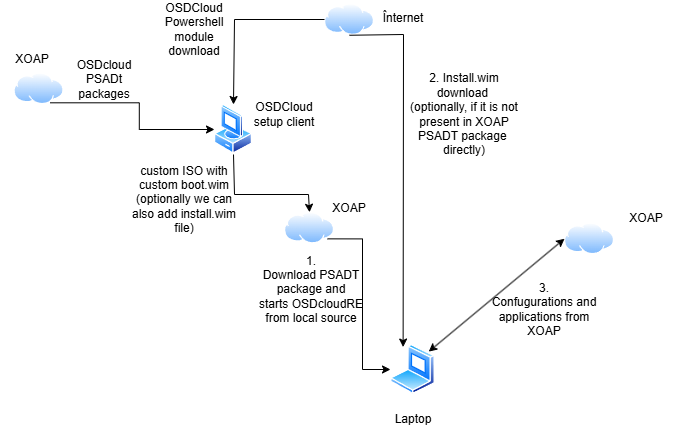
Dieses Szenario erfordert kein lokales Hosting von Bildern. Das Zielgerät bootet in WinPE, lädt das Windows-Image direkt von Microsoft Update herunter, schließt die Installation ab und registriert sich automatisch beim vorgesehenen XOAP Workspace.
Benötigte Infrastruktur:
• 1 Windows 11 24h2 virtuelle Maschine (zur ISO-Erstellung)
• Internetzugang auf der ISO-Creator-VM und auf Zielgeräten
Vorbereitung der ISO:
Installieren Sie auf der ISO-Creator-VM das OSDCloud-Tooling entweder über XOAP durch Anwenden der OSDCloud Workspace Internet OS Application Role oder manuell durch Ausführen der folgenden PSADT-Pakete in dieser Reihenfolge:
1. APP_Microsoft_WindowsAssessmentDeploymentKit_101261002454_Any_x64_EN
2. APP_Microsoft_WindowsPEforADK_101261002454_Any_x64_EN
3. APP_DavidSegura_OSDCloudISOCreator_121_Any_Any_DE
Bevor Sie mit der Installation beginnen, führen Sie den folgenden Befehl aus, um die Ausführungsrichtlinie festzulegen:
Set-ExecutionPolicy -ExecutionPolicy Bypass -Scope LocalMachine -Force
Konfigurieren Sie während der Einrichtung die Parameter, die das Deploy-Image definieren:
Parameterbeschreibung:
Parameter | Beschreibung |
Treiber | Treiber, die in boot.wim einzufügen sind — verwenden * für alle oder Keine überspringen |
OSVersion | Windows 10 oder Windows 11 |
OSBuild | Ziel-Build (z. B. 22h2, 24h2) – Windows 10 unterstützt nur 21h2 und 22h2 |
OSEdition | Home, Pro, Enterprise, usw. |
OSLanguage | Sprache des bereitgestellten Betriebssystems |
OSAktivierung | Volumen oder Einzelhandel |
XOAPWorkspaceID | Die Workspace ID, die im XOAP-Dashboard gefunden wurde |
XOAPConfigurationGroup | Die Konfigurationsgruppe, der neu bereitgestellte Geräte beitreten |
Sobald OSDCloud_NoPrompt.iso abgeschlossen ist, wird es in C:\OSDCloudWorkspace generiert.
Hochladen und Konfigurieren in XOAP:
Fügen Sie die generierte ISO-Datei in den Unterordner „Files“ des PSADT-Pakets „SYS_XOAP_OSDcloudRElocal_100_Any_Any_Any“ ein, komprimieren Sie das Paket als ZIP-Datei und laden Sie es über Application Management > Anwendungen auf XOAP hoch. Erstellen Sie nach dem Hochladen eine Anwendungsrolle und eine Konfigurationsgruppe für die Anwendung. Wenn diese Konfigurationsgruppe auf einem Zielgerät bereitgestellt wird, beginnt die erneute Bereitstellung automatisch.
Das Gerät extrahiert die ISO-Datei in eine neu erstellte Windows Recovery (WinRE)-Partition. Nach einem Neustart bootet das Gerät von dieser Partition in die OSDCloud WinPE-Umgebung, löscht und partitioniert die Festplatte neu und lädt das Windows-Image von Microsoft Update zur Installation herunter.
Nach der Betriebssysteminstallation richtet OSDCloud SetupComplete-Skripte ein, die das Gerät beim ersten Start beim XOAP Workspace registrieren, sofern Internetzugang vorhanden ist. Parallel dazu wird eine geplante Aufgabe konfiguriert, die bei der Benutzeranmeldung ausgeführt wird und die XOAP-Konnektivität prüft – wenn das Gerät bereits registriert ist, entfernt sich die Aufgabe selbst, und wenn nicht, versucht sie die Registrierung, sobald eine Internetverbindung besteht.
Szenario 2: WinPE-Boot mit aus dem Internet heruntergeladenem Betriebssystem
Dieses Szenario folgt dem gleichen End-to-End-Ablauf wie Szenario 1. TDas Windows-Betriebssystem wird während der WinPE-Phase aus dem Internet heruntergeladen., aber ein Boot-Image vom Typ Recovery Full verwendet. Der Unterschied liegt in der boot.wim: Anstelle einer minimalen WinPE-Umgebung enthält das Boot-Image das vollständige install.wim Datei, die verwendet wird, um die WinPE-Umgebung selbst zu erstellen.
Verwenden Sie die OSDCloud Workspace Recovery Vollständig Anwendungsrolle oder die APP_DavidSegura_OSDCloudISOCreatorRecoveryFull_121_Any_Any_DE Paket anstelle des Standard-ISO-Erstellers. Der Einrichtungsvorgang, die erforderlichen Parameter und die XOAP-Uploadschritte sind ansonsten identisch mit Szenario 1.
Anmerkung: Dieses Szenario wird derzeit nicht für die erneute Bereitstellung auf Hyper-V-virtuellen Maschinen unterstützt. Die Partition, die install.wim Datei wird in dieser Umgebung nicht korrekt zugeordnet und wurde auf anderen Virtualisierungsplattformen nicht getestet.
Szenario 3: Betriebssystem-Neubereitstellung von einem Netzwerkspeicher, lokaler Quelle oder anderem
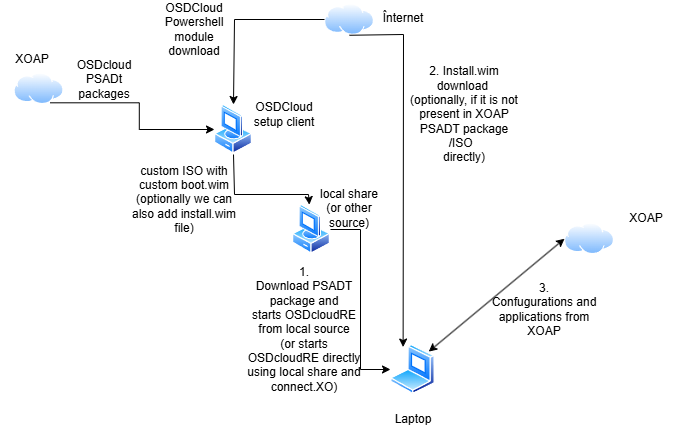
Dieses Szenario deckt die Neuverteilung von Betriebssystemen mithilfe des Skripts OSDcloud_RE_from_localISO.ps1 ab, anstatt eines XOAP-verwalteten PSADT-Pakets. Es unterstützt zwei Optionen zur Bereitstellung des Windows-Images während WinPE – Internet-Download oder Abruf von einem Netzwerkspeicher oder einer lokalen Quelle und ist für Umgebungen geeignet, in denen mehr Kontrolle über den Bereitstellungstrigger erforderlich ist.
Szenario 3 unterstützt zwei Optionen für die Quelle des Windows-Images während WinPE:
• Betriebssystem aus dem Internet heruntergeladen — verwenden Sie die OSDCloud Workspace Internet OS Application Role oder das Paket APP_DavidSegura_OSDCloudISOCreator_121_Any_Any_EN mit den Standardparametern wie in Szenario 1 beschrieben
• Betriebssystem von einer Netzfreigabe abgerufen – verwenden Sie die OSDCloud Workspace lokale Betriebssystem-App-Rolle oder das Paket APP_DavidSegura_OSDCloudISOCreatorLocalShare_121_Any_Any_EN mit den folgenden zusätzlichen Parametern:
Parameterbeschreibung:
TeileNutzer | Ein Benutzerkonto mit Lesezugriff auf die Netzwerkfreigabe |
Benutzerpasswort teilen | Das Passwort für dieses Konto |
UncSharePath | Der UNC-Pfad zur Freigabe, z. B. \\srv1\xoap |
Bei der Verwendung eines Netzwerklaufwerks muss für OSDCloud eine bestimmte Ordnerstruktur eingehalten werden, damit das Image gefunden werden kann:
\\shareserver\sharename\OSDcloud\OS.
Bereitstellung auslösen:
Anstatt die ISO in eine PSADT-Anwendung zu verpacken, wird die Bereitstellung mit dem Skript OSDcloud_RE_from_localISO.ps1 unter Verwendung des Parameters -LocalISOPath ausgelöst:
OSDcloud_RE_from_localISO.ps1 -LocalISOPath “\\srv1\xoap\OSDCloud_NoPrompt.iso”
Dieses Skript verwaltet den vollständigen OSDCloudRE-Einrichtungsprozess: Erstellen der WinPE-Partition, Einbinden des ISO-Images, Kopieren des Boot-Inhalts, Konfigurieren von Boot-Manager-Einträgen und Initiieren eines Neustarts in die Wiederherstellungsumgebung. Es kann direkt über einen XOAP-Connector aufgerufen oder in einem DSC-Konfigurationsmodul eingebettet werden, um zusätzliche Schritte wie ISO-Integritätsprüfungen, Validierung von Voraussetzungen und Dateisicherungen zu ermöglichen, bevor das Löschen beginnt.
Das Skript wurde mit ISOs getestet, die sich auf lokalen Geräten und in Netzwerkfreigaben befinden. Für andere Speichertypen wie Azure Blob Storage, GitHub oder OneDrive müsste das Skript erweitert werden, um den Downloadschritt zu behandeln, bevor die lokale ISO-Logik aufgerufen wird.
Bereitstellung in mehreren Arbeitsbereichen oder Konfigurationsgruppen? Dies gilt für alle drei Szenarien. Führen Sie den ISO-Erstellungsprozess mit den erforderlichen Parametern für jeden Zielarbeitsbereich oder jede Zielkonfigurationsgruppe erneut aus. Benennen Sie die Datei OSDCloud_NoPrompt.iso aus C:\OSDCloudWorkspace zwischen den Ausführungen um oder verschieben Sie sie, da jede neue Ausführung die vorherige Datei überschreibt.
Der Bereitstellungsprozess auf dem Zielgerät
Unabhängig davon, welches Szenario verwendet wird, folgt der Prozess auf dem Zielgerät demselben Ablauf:
1. Die Konfigurationsgruppe stellt das PSADT-Paket auf dem Zielgerät bereit, das die ISO extrahiert, die WinRE-Partition erstellt und einen Neustart auslöst, oder bei Szenario 3 wird das Skript OSDcloud_RE_from_localISO.ps1 direkt ausgeführt.
2. Das Gerät bootet von der OSDCloudRE WinPE-Partition
3. Wenn über Ethernet verbunden, wird die Bereitstellung ohne Interaktion fortgesetzt; andernfalls wird eine Aufforderung zur Auswahl eines drahtlosen Netzwerks angezeigt (die Tastaturbelegung ist zu diesem Zeitpunkt en-us).
4. Der Bediener bestätigt das Löschen der Festplatte; dies ist der einzige interaktive Schritt im Prozess
5. Windows ist installiert und SetupComplete-Skripts werden ausgeführt, um das Gerät beim ersten Start beim XOAP Workspace zu registrieren, falls Internetzugang verfügbar ist; eine geplante Aufgabe wird auch bei jeder anschließenden Benutzeranmeldung ausgeführt, um die XOAP-Registrierung bei Bedarf zu überprüfen und erneut zu versuchen
6. Das Gerät startet in die neu installierte, verwaltete Windows-Umgebung neu.
Laufende Verwaltung nach der Bereitstellung
Nach der Registrierung im XOAP Workspace unterliegen Geräte umgehend den Richtlinien und Konfigurationen, die in ihrer zugewiesenen Konfigurationsgruppe definiert sind. Standardanwendungen können bereitgestellt und System- und Benutzerkonfigurationen ohne weitere manuelle Schritte durchgesetzt werden. Das Ergebnis ist ein konsistenter, konformer Endpunkt ab dem ersten Start.
Erste Schritte
Alle drei Szenarien erfordern eine Windows 11 24h2 virtuelle Maschine und ein XOAP-Konto für die ISO-Erstellung. Internetzugang ist auf der VM zur ISO-Erstellung und auf den Zielgeräten für die Szenarien 1 und 2 erforderlich.
Für Szenario 3 mit einer Netzwerkfreigabe als Bildquelle ist Internetzugang auf der ISO-Erstellungsvirtualmaschine erforderlich, die Zielgeräte können jedoch während der WinPE-Phase ohne diesen betrieben werden.
Erstellen Sie Ihr kostenloses XOAP-Konto or eine Demo buchen Ihre spezifischen Bereitstellungsanforderungen mit dem Team durchzusprechen.